
How to: Install Aruvo on Amazon Fire TV
🧾Summary
This article details the steps to install the Aruvo TV app on an Amazon Fire TV or Fire TV stick.
🗂️Table of Contents
🕐 When to Use This Guide
Follow the steps in this article when:
- You're installing the Aruvo TV app on a smart TV with the Amazon Fire TV operating system built-in
- You're installing Aruvo TV on an Amazon Fire TV Stick device
✅ Before You Begin
Ensure you have the following ready to ensure an easy setup:
- Compatible Fire TV or Fire TV Stick device - See our full list of compatible TV and device models here.
- Personal or business email address for Fire tv account setup (e.g. Gmail, Yahoo, Outlook, Ymail, etc)
- Wi-Fi network name and password
- Aruvo account - If you have not set up your account yet, follow the steps in this article to create and configure your account.
⚠️ Special Considerations
- Make sure your Fire TV is running at least tvOS 6 for the Aruvo TV app to work correctly.
- If the app isn't appearing in search results, it might not be available in your area or the name you're searching for is incorrect. Double-check your spelling and app store settings.
-
Pressing the "Home" button on the Fire TV remote control will close the Aruvo app, and return the user to the Fire TV "Home" screen. Due to limitations in the tvOS software, this behavior cannot be changed on Fire TV devices. It is recommended to advise guests not to use the "Home" button on the Fire TV remote to avoid confusion.
⚙️ Step-by-Step Setup
1. Power on your Fire TV
Ensure that your Amazon Fire TV device is connected to your TV, powered on and connected to Wi-Fi. Navigate to the Home screen using your Fire TV remote.
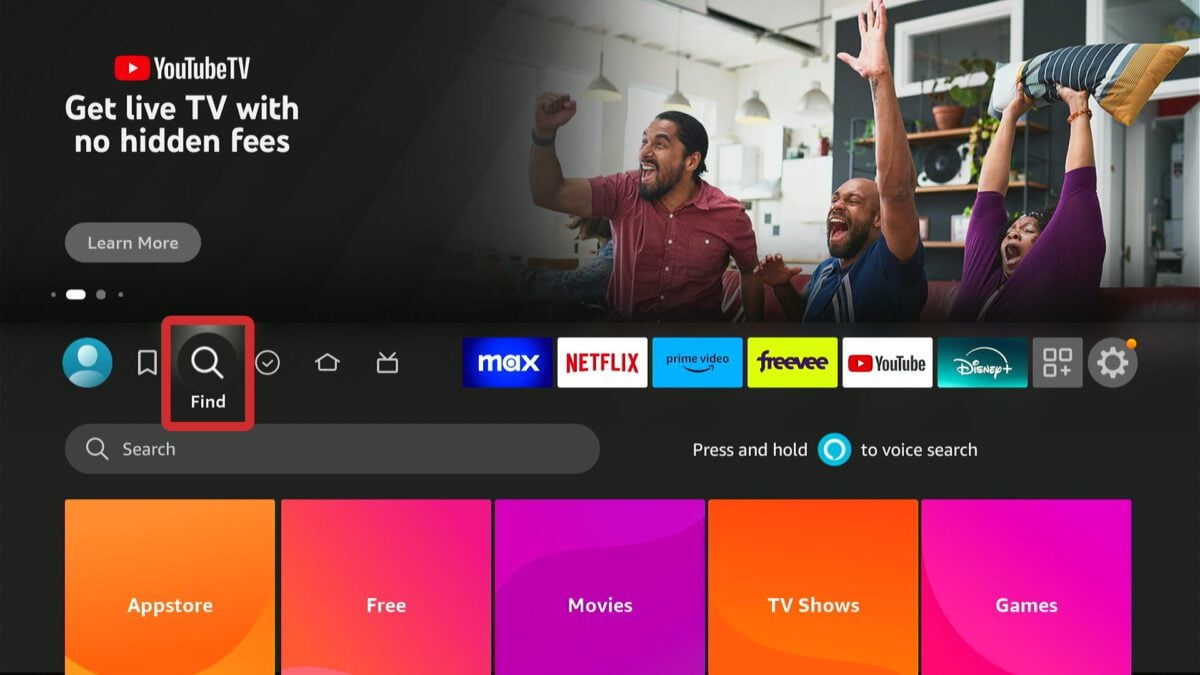
2. Navigate to the Search bar
On the Home screen, you'll see a magnifying glass icon (Find) with a prominent search bar (Search) in the main navigation menu. Select this to open the search function.
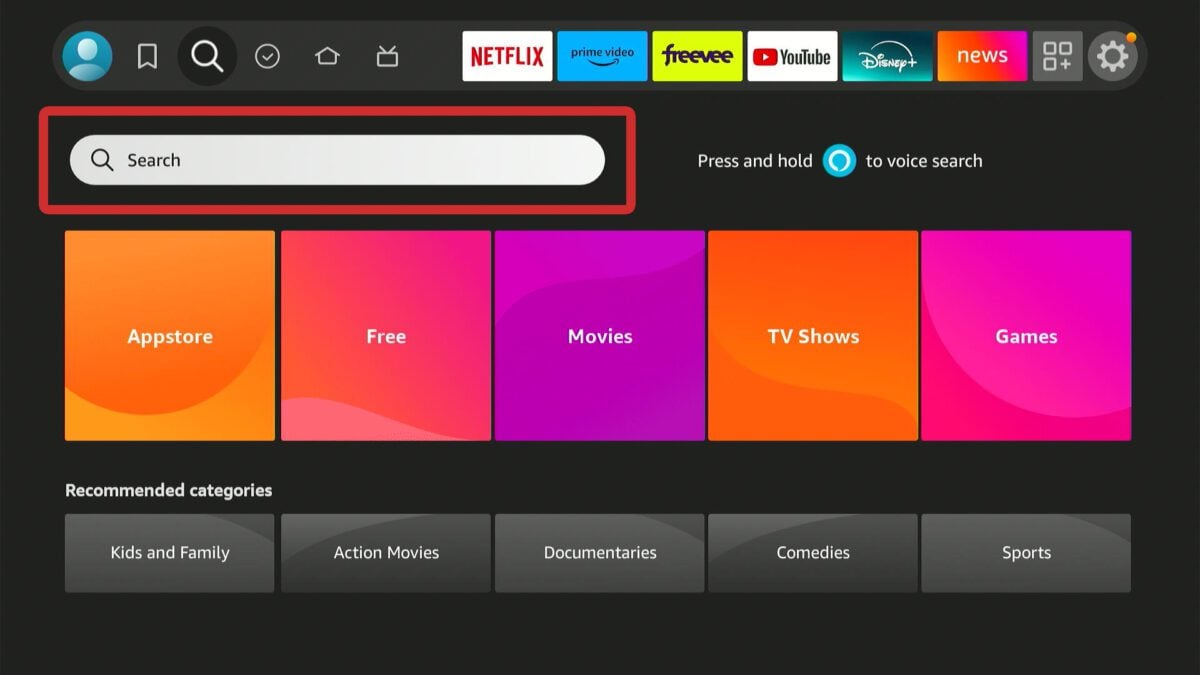
3. Search for Aruvo app
Using the on-screen keyboard or voice input, search for the "Aruvo TV App." As you type, suggestions will appear below. When you see the Aruvo TV app, you can select it from the results.
4. Install and configure the Aruvo TV app
Select the Aruvo app in the search results, and click the center button on the remote to open the app's details page. From here, click the "Get" or "Download" button to install the app.
🔐 Note: If "Parental Controls" or "App Purchase/Downloads requires a PIN to download" options are enabled, you may be prompted to enter your Prime Video PIN code. Enter the correct PIN to proceed.
5. Update Aruvo app location in the list (optional but recommended)
By default, newly-added apps in Fire TV will appear at the end of the app list, but we recommend moving it to the top to make it easy to launch! Follow these steps to move the app:
- Press the "Home" button on the Fire TV remote to return to the Home screen.
- Navigate to the “Apps & Channels” section.
- Select "See All" at the left side of the menu, or press the Menu button (≡) on your Fire TV remote.
- Locate the Aruvo TV app in the app list.
- Select the Aruvo TV app in the list, and press the Menu button (≡) on your Fire TV remote.
- Select “Move to Front” or “Move”. If using “Move,” position the app manually at the top row using the arrow buttons, then press Select.
6. Launch Aruvo TV and link to property listing
To finish the setup, just launch the Aruvo app! For the first property that you set up on your Aruvo account, the TV will link automatically. For each additional property, Aruvo TV will prompt you to enter a Linking Code. Follow the steps in this article to link your TV to the matching property listing: How to: Link Aruvo TV to property
Comments
0 comments
Article is closed for comments.